| Garantie LCD/Backlight (Jahre): | 5/3 incl. Vor-Ort-Austauschservice |
| max. Pixelfehler (nach ISO 13406-2): | Klasse II |
| Panelgröße: | 24,1″ |
| Pixelgröße [mm]: | 0.270 |
| Standardauflösung: | 1.920 x 1.200 |
| Sichtbare Bildgröße/-diagonale [mm]: | 518.4 x 324 / 611 |
| Videoeingang, Stecker: | 2 x DVI-I (analog und digital) |
| Bildfrequenz [Hz]: | 49 – 86 analog / 59 – 61 digital |
| max. Zeilenfrequenz / Videobandbreite [kHz/MHz]: | 24 – 94 / 202,5 analog / 31 – 76 / 162 digital |
| Farbmodi Preset/User: | 4 / 1 |
| LCD drehbar/Portrait Modus: | Ja / Nein |
| LCD Display Arm Option: | Ja |
| Ausstattung: | DVI-D Kabel, DVI-A Kabel, USB-Hub, USB-Kabel, Netzkabel |
| Monitormaße (B x H x T) [mm]: | 566 x 358,7 – 480 x 230 |
| Gewicht [kg]: | 10,2 |
| Prüfzeichen: | TCO99, CE, CB, TÜV Rheinland /GS, EPA ENERGY STAR-Programm, TÜV Rheinland Ergonomie Geprüft |
| Leistungsaufnahme On/Stand-by/Off [Watt]: | 110 / < 2 / – |
Einleitung
Eizo hat auf die stark ansteigende Nachfrage nach Widescreen Monitoren mit einem 21,1 und 24,1 Zoll Display reagiert. Den 21,1 Zoll S2110W-K haben wir mit überwiegend sehr guten Leistungen kürzlich getestet. Aufgrund einer großen Nachfrage seitens unserer Leser, haben wir jetzt auch den S2410W-K getestet.
In diesem Test wollen wir klären, wie sich der Eizo S2410W-K in der täglichen Praxis, beim Arbeiten, Spielen und der DVD-Wiedergabe schlägt. Des Weiteren werden wir ermitteln, ob der S2410W-K an die sehr guten Leistungen des S2110W-K anknüpfen kann.
Alle in diesem Test veröffentlichten Ergebnisse wurden am digitalen Eingang ermittelt. Lediglich die analoge Bildqualität wurde am analogen Anschluss getestet. Alle Tests wurden an einer Gainward PowerPack! Ultra/2600 Golden Sample und zwei Point of View GeForce 7800GTX 512MB (SLI) durchgeführt.
Lieferumfang
Im Lieferumfang des Eizo S2410W-K ist folgendes enthalten: eine kurze Installationsanleitung, OSD Quickreferenz, Garantieerklärung, CD, DVI-D Kabel (digital), DVI-A Kabel (analog), USB-Kabel und ein Netzkabel. Auf der CD befinden sich der Windows Monitortreiber, ein ausführliches Handbuch im HTML-Format und Eizo’s Screenmanagersoftware. Es sind ebenfalls vier M4 12 mm Schrauben mit Unterlegscheiben im Lieferumfang enthalten. Die Schauben sind zur Montage einer VESA-Halterung gedacht. Ein ausführliches Handbuch in gedruckter Form liegt dem Eizo S2410W-K nicht bei, eine heute leider übliche Praxis bei den Displayherstellern. Der Lieferumfang des S2410W-K kann insgesamt als komplette bezeichnet werden.

Optik und Mechanik
Das Gehäuse und der Fuß des Eizo S2410W-K sind ganz in schwarz. Das Design des Monitors ist schlicht und orientiert sich mehr an den professionellen Anwender. Das Imposante 24 Zoll Display macht optisch einen ansprechenden und hochwertigen Eindruck.

Der Rahmen hat an allen Seiten eine Breite von 2,3 cm. Am unteren Rahmen, optisch abgesetzt, schließt sich ein geschwungenes Bedienfeld für die Sensortasten an. Das Bedienfeld misst an der breitesten Stelle 2,5 cm.


Der Eizo ArcSwing-Standfuß bietet eine Höhenverstellung, ist drehbar und hat eine Neigefunktion.
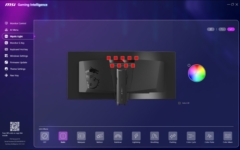

Diese hat einen Verstellbereich von 5° nach vorne und 25° nach hinten. In der niedrigsten Höheneinstellung kann das Panelgehäuse praktisch bis zur Tischoberfläche abgesenkt werden.


Die Höhenverstellung des ArcSwing-Standfuß gestattet keine gradlinige Justage der Höhe, sondern folgt einer Kurve. So erweitert sich der Verstellbereich der Neigung nach hinten auf bis zu 60°. Die Höhenverstellung und die Neigemechanik funktionieren beim Testgerät einwandfrei.

Das Panelgehäuse weist eine ungewöhnliche Tiefe von 8,5 cm auf. Die Tiefe hängt mit der neuartigen direkten Hintergrundbeleuchtung zusammen, die schon vom Test des Eizo S2110W-K bekannt ist und auf die wir an andere Stelle noch kurz eingehen werden.

Der im Fuß integrierte Drehteller gestattet das Drehen des Eizo S2410W-K um 172° nach links und rechts.
Der Drehteller ist aus massivem Metall und trägt damit maßgeblich zum Gewicht des Standfußes von 2,4 kg bei. Der Drehteller gestattet ein komfortables Drehen des Monitors in einem großen Radius.

Der Standfuß des Eizo S2410W-K ist identisch mit dem des S2110W-K und gewährleistet eine ausgezeichnete Standsicherheit des Monitors auf dem Schreibtisch.

Der Eizo S2410W verfügt auf der Rückseite des Standfußes über eine einfache und praktische Kabelführung, die aus einem klappbaren Metallbügel besteht.

Der Eizo S2410W-K bietet eine VESA MIS-D 100 (wird auch als VESA100 bezeichnet) und eine VESA MIS-E Verschraubungsmöglichkeit. Nach dem Lösen von 4 Schauben ist der ArcSwing-Standfuß ganz einfach vom Panelgehäuse zu demontieren. Man sollte dazu z.B. ein großes Handtuch auf dem Tisch ausbreiten und den Monitor mit der Panelseite vorsichtig auf dieses legen. Nach der Demontage des Standfußes kann jede Art von Halterung, die dem VESA MIS-D 100 oder MIS-E Standard entspricht, am Panelgehäuse angeschraubt werden. Zu diesem Zweck sind extra vier M4 12 mm Schrauben mit Unterlegscheiben im Lieferumfang enthalten.

Die Verarbeitungsqualität des Testgerätes ist sehr gut, alle Gehäuseteile passen sauber zusammen. Ein knarren oder knacken des Gehäuses konnten wir während des Testzeitraums nicht feststellen.



Die Power-LED des Eizo S2410W-K leuchtet blau, geht der Monitor in den Stand-by-Mode, so ändert sich die Farbe der LED und diese leuchtet orange. Die Power-LED leuchtet recht hell und kann in dunkler Umgebung störend wirken. Im OSD des S2410W-K gibt es allerdings die Möglichkeit die Power-LED ganz zu deaktivieren.
Der Monitor arbeitet praktisch geräuschlos. Ein sehr leises Brummen ist nur dann wahrnehmbar, wenn man ein Ohr oben an die Lüftungsschlitze der Gehäuserückseite anlegt.
Einen Netzschalter, der das Gerät vollständig vom Stromnetz trennt, besitzt der Eizo S2410W-K nicht. Soll das Display komplett vom Stromnetz getrennt werden, muss dafür das Netzkabel gezogen werden.
Anschlüsse
Das Panelgehäuse hat auf der Rückseite eine Aussparung, in der die Anschlüsse des Eizo S2410W-K angeordnet sind. Folgende Anschlüsse sind vorhanden: zwei DVI-I Eingänge (analog und digital), USB-Eingang, 2fach USB-Hub und Netzanschluss. Alle Anschlüsse sind gut erreichbar.


Die beiden Anschlüsse des USB-Hubs sind links seitlich am Panelgehäuse platziert. Die Anschlüsse sind damit zwar sehr gut erreichbar, aber nach unserer Meinung lediglich für den kurzzeitigen Gebrauch, z.B. zum Einstecken eines Memorysticks sinnvoll einzusetzen, da die eingesteckten USB-Kabel/Geräte deutlich vom Rahmen abstehen. Einer der beiden USB-Anschlüsse liegt sehr dicht am Rahmen, so dass in diesem z.B. kein großer USB-Stick eingesteckt werden kann. Ein großer Stick würde beim Einstecken verkanten und es könnte sowohl der USB-Stick, wie auch der USB-Port dabei beschädigt werden.