| Garantie LCD/Backlight (Jahre): | 3 inkl. Vor-Ort-Abholservice (optional und kostenpflichtig: 3 Jahre mit Vor-Ort-Austausch) |
| max. Pixelfehler (nach ISO 13406-2): | Klasse II |
| Panelgröße [Zoll]: | 22 |
| Pixelgröße [mm]: | 0.282 |
| Standardauflösung: | 1.680 x 1.050 |
| Sichtbare Bildgröße/-diagonale [mm]: | 473 x 296 / 560 |
| Videoeingang, Stecker: | 1 x D-Sub (analog) und 1 x DVI-D (digital) |
| Bildfrequenz [Hz]: | 56 – 76 |
| max. Zeilenfrequenz/Videobandbreite [kHz/MHz]: | 30 – 83 / 165 |
| Farbmodi Preset/User: | 4 / 1 |
| LCD drehbar/Portrait Modus: | Ja / Ja |
| LCD Display Arm Option: | Ja |
| Ausstattung: | DVI-D-Kabel, Sub-D-Kabel, Audiokabel, Netzkabel, Netzteil intern, CD-ROM, HDCP an DVI, integr. Lautsprecher, Screenmanagersoftware |
| Monitormaße (B x H x T) [mm]: | 505,5 x 357,5 – 467,5 x 216 (mit Fuß) |
| Gewicht [kg]: | 6,44 |
| Prüfzeichen: | TCO 03, UL, CUL, TUV/GS, T-Mark, ISO9241-3/-7/-8, FCC/B, VCCI, CE, C-tick, BSMI, WHQL, ISO 13402-6 |
| Leistungsaufnahme On/Stand-by/Off [Watt]: | max. 65 / 2 / 1 |
Einleitung
Mit dem B223W bringt Acer ein neues Modell mit TN-Panel im hartumkämpften 22-Zoll Segment auf den Markt. Traditionelle Zielgruppe der 22 Zoll Displays mit TN Panel sind vor allem Spieler schneller Actionspiele, die ein reaktionsschnelles Panel benötigen sowie Office-Anwender.
Der Acer B223W stammt aus der Business Serie, daher auch das B am Anfang der Modellbezeichnung. Bei den Modellen der Busines Serie sind wichtige ergonomische Funktionen vorhanden, die den Modellen der Serien für Heim- und Privatanwender in der Regel fehlen.
Die nackten Spezifikationen sprechen zunächst nicht dafür, dass sich Acer mit dem B223W deutlich von den zahlreichen Mitbewerbern abheben kann. Immerhin gehören zur Ausstattung aber in der 22-Zoll-Klasse nicht selbstverständliche Ergonomie-Features wie eine Höhenverstellung und Pivotfunktion.
Alle im Test veröffentlichten Ergebnisse wurden am digitalen Eingang einer Asus 8800GTX ermittelt. Für den Test der Videofunktionen wurde ein iScan VP50Pro verwendet.

Lieferumfang
Der Acer B223W wird in einer sehr kompakten Verpackung angeliefert. Der Monitor selbst liegt als „Bausatz“ vor, d.h. der mitgelieferte Standfuß muss vom Käufer selbst montiert werden. Das ist allerdings in Sekundenschnelle mit wenigen Handgriffen durchgeführt.

Im Karton befinden sich neben Bildschirm und Standfuß alle Utensilien, die für den sofortigen Einsatz am heimischen Rechner notwendig sind. Die Konnektivität stellen ein D-Sub-VGA- und DVI-D-Kabel sicher; ein Kabel mit 3,5-Zoll Klinkenstecker überträgt optional den Ton vom Rechner, der über eingebaute Boxen wiedergegeben werden kann. Eine Kurzanleitung und Garantiehinweise liegen in gedruckter Form vor.

Auch Acer verzichtet auf ein vollwertiges Handbuch in gedruckter Form. Dieses befindet sich auf der mitgelieferten CD, die zudem zwei Zusatzprogramme enthält. „Acer eDisplay Management“ erlaubt die Einstellung der wichtigsten Parameter vom Rechner aus und ermöglicht eine grobe Kalibrierung per Augenmaß.




Die Kommunikation erfolgt über die DVI-Schnittstelle, eine USB-Verbindung ist also nicht nötig. „Gridvista“ segmentiert die Windowsoberfläche und kann Anwendungen an diesem virtuellen Raster ausrichten. Auf beide Softwareprodukte werden wir im Verlauf des Tests eingehen.
Optik und Mechanik
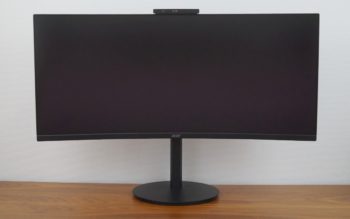
Der Acer B223W präsentiert sich äußerst schlicht und filigran. Der dünne, nur 1 cm breite, silbrig-graue Rahmen trägt seinen Teil dazu bei. Verzierungen finden sich nicht.
Die Rückseite und besonders der Standfuß, beide in einem dunkleren „Plastik-Grau“ gehalten, wirken dagegen in Sachen Verarbeitung und Design nicht sonderlich hochwertig. Hinzu kommt der Umstand, dass unser Testgerät einen leichten Schiefstand aufweist.

Die linke Seite des Rahmens steht knapp einen Zentimeter höher als die rechte Seite. Bei Geräten mit Pivotfunktion, über die auch der B223W verfügt, sind kleinere Abweichungen nicht selten. Dennoch ist der Anschlagpunkt bzw. die -begrenzung eindeutig nicht richtig gewählt worden. Selbst mit etwas größerem Kraftaufwand konnte dieser Umstand nicht behoben werden.



In jedem Fall ist die Schräglage störend. Besonders elegant sieht es zudem nicht aus, wenn man den TFT-Monitor erst mit einigen Bierdeckeln manuell gerade ausrichten muss.


Der Standfuß erlaubt eine Höhenverstellung von etwa 10 cm. In der niedrigsten Einstellung beträgt der Abstand der Rahmenunterkante bis zur Tischoberfläche 3 cm; in der höchsten Position sind es 13 cm. Die maximale Neigung nach hinten ist bei etwa 35 Grad erreicht, während die Neigung nach vorne bei etwa 5 Grad endet.


Mit dem im Standfuß eingelassenen Drehteller lässt sich der Bildschirm um jeweils 35 Grad nach links und rechts schwenken, was zum Beispiel im Einsatz im Unternehmen einem Kunden den Blick auf den Bildschirminhalt erleichtert.


Die Pivotfunktion erweitert den Desktop in vertikaler Richtung. Allerdings dürften die Einsatzgebiete relativ beschränkt sein. „Nice to have“ ist dieses Feature aber in jedem Fall und wer gerne lange Dokumente oder Internetseiten liest, ist dafür sicherlich dankbar.


Auf der Rückseite ist eine Kabelführung angebracht, die zur Verminderung des üblichen Kabelwustes beitragen kann. Eine Wandmontage des Acer B223W ist problemlos möglich, der Standfuß ist mit einer VESA100-Verschraubung versehen und kann komplett entfernt werden.


Die Seiten des Gehäuses weisen zahlreiche und grobe Lüftungsschlitze auf, die für eine ausreichende Belüftung sorgen. Wer im Sommer Angst vor eindringenden Insekten hat, kann mit einem Fliegengitter und einer Lichtquelle im Raum das Risiko erheblich senken.


Nach dem Einschalten verhält sich der Acer B223W völlig lautlos. Selbst das eingebaute Schaltnetzteil bleibt unauffällig, auch wenn man Testbilder mit harten Kontrasten zuspielt.
Stromverbrauch
| Hersteller | Gemessen | |
| Betrieb maximal | 65 W | 42,3 W |
| Energiesparmodus | < 2 W | 0,9 W |
| Ausgeschaltet | < 1W | 0 W |
| 140 cd/m² | – | 33,2 W |
| 0 % Helligkeit | – | 17,6 W |
Der Acer B223W bleibt beim Stromverbrauch erfreulicherweise in jeder Situation unter den Herstellerangaben. Selbst bei maximaler Helligkeit begnügt sich das Gerät mit knapp 42 Watt.
Ein sinnvolles Feature ist der eingebaute Netzschalter, da mit der normalen Power-Taste oft keine 0 Watt erreichbar sind. In diesem Fall genügt aber bereits das Ausschalten mit der Power-Taste, um dieses Ziel zu erreichen.