| Garantie LCD/Backlight (Jahre): | 3 Jahre Vor-Ort-Austauschservice |
| max. Pixelfehler (nach ISO 13406-2): | Klasse II |
| Panelgröße [Zoll]: | 24 |
| Pixelgröße [mm]: | 0.270 |
| Standardauflösung: | 1.920 x 1.200 |
| Sichtbare Bildgröße/-diagonale [mm]: | 518,4 x 324 / 611,3 |
| Videoeingang, Stecker: | 1 x D-Sub (analog), 1 x DVI-D (digital) |
| Bildfrequenz [Hz]: | 25 – 60 |
| max. Zeilenfrequenz/Videobandbreite [kHz/MHz]: | 31,5 – 74,55 / 172 |
| Farbmodi Preset/User: | 2 / 1 |
| LCD drehbar/Portrait Modus: | Nein / Nein |
| LCD Display Arm Option: | Ja |
| Ausstattung: | Netzkabel, D-Sub Kabel, Audiokabel |
| Monitormaße (B x H x T) [mm]: | 570 x 463 x 249,6 (mit Fuß) |
| Gewicht [kg]: | 5,76 |
| Prüfzeichen: | TCO 03, TÜV/GS, CE-Zeichen, ISO 13406-2, Energy Star, FCC-B und UL |
| Leistungsaufnahme On/Stand-by/Off [Watt]: | max. 81 / 1 / 0 |
* In der Werkseinstellung bei einer zu hohen Grundhelligkeit von 430 cd/m².
Einleitung
Der Yuraku YV24WBH1 wird in diversen Foren als Geheimtipp gehandelt. Weshalb erschließt sich sehr schnell, wenn man sich die Rahmendaten anschaut: Ein 24 Zoll Monitor mit MVA Technik, 6 ms Reaktionszeit und HDCP-Unterstützung für knapp 260,00 Euro. Das Panel verfügt über eine native Auflösung von 1.920 x 1.200 Pixeln (WUXGA), womit auch Full-HD Inhalte dargestellt werden können.
Yurakus Stammsitz liegt in Singapur und deren Homepage bewirbt den Testkandidaten mit folgenden Worten: „24 inch LCD Wide Screen display that will rock your visual senses for work or gameplay alike.“ Ob der Yuraku unser Testlabor wirklich „rocken“ wird oder sich als Seifenblase entpuppt, soll der nachfolgende Test klären.
Als Testbasis dient eine Ati x1900xt, das DTP94-Colorimeter von Quato, sowie die dazugehörige Software iColor Display in Version 3.0.5.1.
Lieferumfang
Geliefert wird das 24 Zoll Modell in einem Karton mit praktischem Tragegriff. Das niedrige Gesamtgewicht von 7,3 kg und die kompakten Maße des Pakets, aufgrund des abnehmbaren Fußes, ermöglichen einen problemlosen Transport.

Beigelegt ist ein VGA-, ein Netz- und ein Audiokabel, letztgenanntes dient zur Verbindung der Soundkarte mit den eingebauten Lautsprechern. Zudem befindet sich im Karton noch eine Garantiekarte, eine Betriebsanleitung und eine Kabelhalterung. Das auf dem Karton gekennzeichnete DVI- bzw. DVI-HDMI Kabel fehlt. Eine Treiber- oder Software CD sucht man vergebens. Somit ist der Lieferumfang nur als spartanisch zu bezeichnen.



Optik und Mechanik
Auf den ersten Blick und bei einem gewissen Abstand zum Gerät, macht der Yuraku eigentlich eine ganz gute Figur. Das matte Panel ist eingebaut in einen schwarzen Hochglanz-Rahmen, der mit einer silbernen Zierleiste umrandet ist. Störende Lichtreflexe auf dem Panel sind somit nicht zu erwarten, der Rahmen spiegelt allerdings einfallende Lichtquellen deutlich. Störend ist, dass der innenliegende Rahmen das dargestellte Bild spiegelt.

Die Breite des Rahmens beträgt seitlich und oben 23 mm sowie unten 47 mm. Damit fällt der Rahmen zumindest oben und seitlich relativ schmal aus. Die Menütasten befinden sich mittig im unteren Bereich des Bildschirms, integriert in die untere silberne Zierleiste.

Leider sind die eingravierten Beschriftungen kaum zu lesen, zum Einen da sie sich farblich nicht vom schwarzen Rahmen abheben zum Anderen da die Betriebs-LED dermaßen hell leuchtet, dass sie blendet. Dies stört insbesondere am Abend. Leider kann die Helligkeit im OSD nicht gedimmt, noch komplett abgeschaltet werden. Das silberne Yuraku Logo wurde mit einem transparenten Klebestreifen oberhalb der Bedientasten auf den Rahmen geklebt.
Insgesamt hinterlässt der Rahmen einen „billigen“ Eindruck, so dass wir von einer hochwertigen Haptik weit entfernt sind. Am auffälligsten ist der untere Rahmen, der nicht am Panel anliegt und schon mit leichtem Druck verformbar ist. Gleiches können wir aber auch im unteren Teil der linken Rahmenseite beobachten.


Fortgeführt wird das Ganze in dem ellipsenförmigen Standfuß des Gerätes. Die Montage ist denkbar einfach, der Monitorarm muss lediglich auf den Fuß gesteckt werden, der dann hörbar einrastet. Leider führt der Verzicht von Schrauben und einer entsprechend schweren Bodenplatte zu einer wackeligen Konstruktion. Das Gerät kommt schon bei der kleinsten Berührung ins Wippen und wirkt alles andere als standfest.


Strom- und Monitorkabel können auf der Rückseite durch die halbkreisförmige Kabelhalterung geführt werden, die einfach in den Standfuß gesteckt wird.

Ergonomie wird bei Yuraku leider nicht sehr groß geschrieben. Es gibt nur eine Mechanik, die den Monitor um etwa 5 Grad nach vorne und etwa 15 Grad nach hinten neigen kann.


Wer seinen Monitor neigen möchte, sollte den Fuß besser mit einer Hand festhalten um nicht einen eventuellen Bruch in Kauf zu nehmen. Auf eine Pivotfunktion, Höhenverstellung oder seitliche Drehmöglichkeit des Monitors muss man leider verzichten. Wer allerdings nicht ohne ergonomische Funktionen leben will, kann die vorhandene VESA Halterung (75 mm) nutzen, um einen optionalen Monitorarm anzubringen.
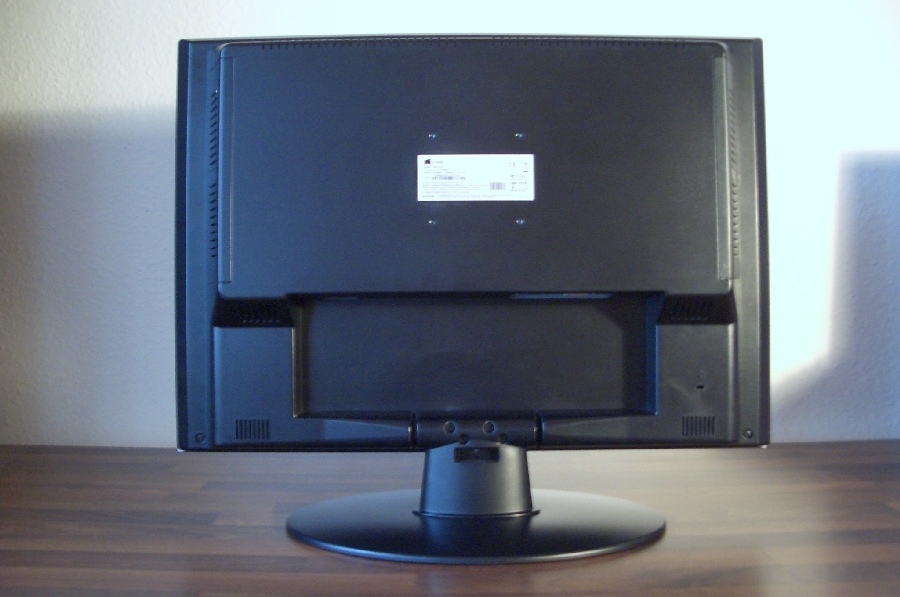

Positiv hervorzuheben ist allerdings der absolut geräuschlose Betrieb des Monitors. Das eingebaute Netzteil ist nicht durch ein Brummen oder Surren wahrzunehmen. Die entstehende Wärme wird durch die oberen und seitlichen Lüftungsschlitze abgeführt.


Stromverbrauch
| Hersteller | Gemessen | |
| Betrieb maximal (100 % Helligkeit) | < 100 W | 81,2 W |
| Energiesparmodus (Standby) | < 3 | 1 W |
| Ausgeschaltet | k.A. | 0 W |
| 50 % Helligkeit | k.A. | 81,2 W |
Der Yuraku YV24WBH1 erweist sich beim Stromverbrauch als typischer Vertreter seiner Panelgrößenklasse. Die von uns gemessenen Werte liegen zum Teil deutlich unter den Herstellerangaben.
Anschlüsse
Die Anschlussvielfalt des Yuraku gestaltet sich sehr übersichtlich. Ein D-Sub- und ein DVI-D Anschluss sind die einzigen Eingänge für die Bilddarstellung. Die HDCP Unterstützung am DVI-Eingang ist optional. Das uns vorliegende Testexemplar kommt mit HDCP allerdings zurecht.

Zur Wiedergabe von Sound steht ein Audioeingang zur Verfügung. Die Qualität der eingebauten Lautsprecher ist erwartungsgemäß eher als bescheiden zu bezeichnen. Mehr als die Töne des Betriebssystems sollten damit nicht wiedergegeben werden.