| Garantie LCD/Backlight (Jahre): | 3 Jahre bedingter Vor-Ort-Austauschservice |
| max. Pixelfehler (nach ISO 13406-2): | Klasse II |
| Panelgröße [Zoll]: | 22 |
| Pixelgröße [mm]: | 0.282 |
| Standardauflösung: | 1.680 x 1.050 (16:10) |
| Sichtbare Bildgröße/-diagonale [mm]: | 296,1 x 473,8 / 560 |
| Eingänge, Stecker: | 1x D-Sub VGA (analog), 1x DVI-D (digital) |
| Bildfrequenz [Hz]: | 55 – 75 |
| max. Zeilenfrequenz/Videobandbreite [kHz/MHz]: | 24 – 80 / 165 |
| Farbmodi Preset/User: | 3 / 1 |
| LCD drehbar/Portrait Modus: | Ja / Ja |
| LCD Display Arm Option: | Ja |
| Ausstattung: | Netzkabel, DVI-D-Kabel (single-link), D-Sub HD15, 3,5 mm Klinkenstecker (Audio), eingebaute 1 W Lautsprecher (Stereo), Handbuch |
| Monitormaße (B x H x T) [mm]: | 506,0 x 398,0 – 508,0 x 249,5 (mit Fuß) |
| Gewicht [kg]: | 6,7 |
| Prüfzeichen: | TCO´03CE, TÜV-GS, Energy Star, VESA DPMS, VCCI-B |
| Leistungsaufnahme On/Stand-by/Off [Watt]: | 39 (typ.) / 2 (max. kein Adio) / k.A. |
Einleitung
Mit dem 22 Zoll ProLite B2206WS bringt Iiyama in seiner Business-Klasse einen ausgesprochen reaktionsfreudigen Monitor auf den Markt, der neben seinem niedrigen Preis eine ergonomische Vollausstattung bietet und dank geringem Input Lag und 2 ms Reaktionszeit für Spieler ausgesprochen interessant sein könnte.
Angepriesen mit einem dynamischen Kontrastverhältnis von bis zu 10.000:1, lässt der Monitor mit integrierten Stereolautsprechern und HDCP-Unterstützung auf dem DVI-Port ebenfalls eine durchaus gelungene Multimediawiedergabe erhoffen.
Ob das 1680 x 1050 Bildpunkte darstellende TN-Display seine vom Hersteller angekündigten DTP- und CAD-Eignungen wirklich einhält oder ob es den Schwächen eines TN-Panels unterliegt, ergründen wir für Sie im folgenden Test.
Getestet wird im PC-Betrieb an einer Sparkle GeForce 8800GTS 512 (G92); die Videowiedergabe wird sowohl mit einem PC über DVI als auch mit einer PS3 via HDMI-auf-DVI-Kabel realisiert. Zusätzlich wird ein Gretag Macbeth EyeOne Display2 Kolorimeter in Zusammenspiel mit der iColor Display 3.5.0.0 Software für die Messungen eingesetzt. Für die Input Lag Bestimmung wird die Software SMTT verwendet.
Lieferumfang
Der Monitor wird ohne montierten Standfuß geliefert, was den Karton relativ schmal hält. Der Fuß selbst ist kreisrund, hat abgeschrägte Kanten an der Oberseite und einen Kern aus Metall, in den sich der Arm des Monitors passgenau einfügt. Eine mitgelieferte Flügelschraube lässt sich von unten problemlos einschrauben und sorgt für eine einfache und zugleich sichere Verbindung zwischen der Bodenplatte und dem eigentlichen Monitor. Ein umlaufender Gummiring im äußeren Bereich sorgt für rutschfesten Stand und dafür, dass der eingebaute Drehteller bei der Rotation des Monitors fest auf dem Tisch stehen bleibt.


Rechts: Standfuß von unten. Umlaufend sind die Gummifüße zu erkennen. Durch das größere der vier Löcher wird der Monitorfuß festgeschraubt.
Natürlich liegen dem Monitor auch Kabel bei, die den Anschluss zum PC ermöglichen, sowie ein gedrucktes Handbuch, das tatsächlich diesen Namen verdient hat. Im Gegensatz zu manch anderen Monitoren enthält es nicht nur die Garantiebestimmungen, sondern erklärt das gesamte OSD ausführlich.


Im Lieferumfang befinden sich ein Stromkabel, ein D-Sub-HD15-Kabel für die analoge Zuspielung der Bilddaten, ein Klinkensteckerkabel (3,5 mm) für die Zuspielung von Audiosignalen und ein recht kurzes (ca. 1,5 m) DVI-D-Single-Link-Kabel für die digitale Signalzuspielung.

Das Kabelsortiment ist vollständig und passt zu jedem der vom Monitor bereitgestellten Anschlüsse.
Optik und Mechanik
Passend für ein Gerät der Business-Serie ist das Gehäuse überwiegend in einem matten Anthrazit-Grau gehalten und somit wenig spektakulär. Der Bildschirmrahmen ist oben und an den Seiten schmaler als an der unteren Kante und eignet sich somit gut für den Mehrschirmbetrieb. Während die Beschriftungen der Bildschirmtasten frontal in den Rahmen eingeprägt wurden, sind die sechs Tasten nach unten in den Kunststoff eingelassen und werden zentral von der Status-LED unterbrochen. Diese LED ist mattiert und strahlt ihr Licht primär nach unten ab, wodurch der Benutzer keinesfalls irritiert wird.


Im Bereich von 10,9 cm kann die Höhe des Monitors eingestellt werden. Zudem ist eine Anpassung seines Neigungswinkels bis zu 20° nach hinten möglich.


Der Drehteller im Standfuß erlaubt das Schwenken des Monitors um üppige 340°, also fast komplett im Kreis. Damit aber noch nicht genug: Auch an eine Pivotfunktion hat Iiyama gedacht.

Aus ergonomischer Sicht bleiben keine Wünsche offenen, da der ProLite B2206WS alle gängigen Anforderungen erfüllen kann.
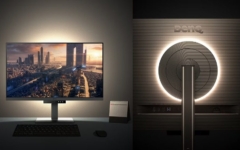



Die Rückseite ist überwiegend im gleichen Anthrazitgrau gehalten, nur der Arm des Standfußes glänzt in Klavierlackoptik. Dieser Bereich scheint recht empfindlich zu sein, da selbst unter der Schutzfolie bereits feine Kratzer zu erkennen waren. Um weiteren Schäden vorzubeugen, haben wir uns dazu entschlossen, die Schutzfolie hier am Gerät zu belassen. Durch die Aussparung in der Schutzfolie im unteren Bereich ragt die Kabelführung hervor. Sie hält Kabel nach dem Prinzip einer einfachen Klammer zusammen.


Der ProLite B2206WS ist weder Schmuckstück noch Designergerät. Durch sein wenig aufdringliches Äußeres nimmt er sich bescheiden auf dem Schreibtisch aus.
Leider ist das Gerät nicht frei von Mängeln. Obwohl der Monitor so standfest ist, dass er nicht umkippen kann, wackelt er in sich doch stärker, als man es von einem Gerät dieser Größenklasse erwarten sollte. Darüber hinaus springen bei genauerem Hinsehen Fertigungsmängel ins Auge. An der oberen linken Bildschirmecke fehlt ein kleines Stückchen vom Kunststoff, während die obere rechte Ecke nicht entgratet wurde.


Abgesehen von diesen drei Mängeln sei erwähnt, dass die Tasten ebenfalls recht klapprig im Gehäuse eingelassen sind, was näher im Abschnitt „Bedienung“ erläutert wird. Die Qualität des Gehäuses überzeugt leider nicht und ist in Anbetracht des Preises keineswegs zufriedenstellend.