| Garantie LCD/Backlight (Jahre): | 5 inkl. Vor-Ort-Austauschservice |
| max. Pixelfehler (nach ISO 13406-2): | Klasse II |
| Panelgröße: | 30″ |
| Pixelgröße [mm]: | 0.250 |
| Standardauflösung: | 2.560 x 1.600 |
| Sichtbare Bildgröße/-diagonale [mm]: | 641 x 401 / 756 |
| Videoeingang, Stecker: | 2 x DVI-D digital (SingleLink und DualLink) |
| Bildfrequenz [Hz]: | 59 – 61 |
| max. Zeilenfrequenz/Videobandbreite [kHz/MHz]: | 31 – 100 / 269 |
| Farbmodi Preset/User: | 4 / 1 |
| LCD drehbar/Portrait Modus: | Ja / Nein |
| LCD Display Arm Option: | Ja |
| Ausstattung: | 2 x DVI-D Kabel, USB-Hub, USB-Kabel, Netzkabel, WideGamut Display, ScreenManager Software, 6-Achsen Farbkontrollekontrolle |
| Monitormaße (B x H x T) [mm]: | 689 x 490 bis 580 x 272 (mit Fuß) |
| Gewicht [kg]: | 15,3 |
| Prüfzeichen: | TCO’03, CE, TÜV ERGONOMIE, TÜV GS, Energy Star, FCC Class B, AS, ISO 13406-2 (Pixel Fehlerklasse II) |
| Leistungsaufnahme On/Stand-by/Off [Watt]: | max. 170 / – / < 1 |
Einleitung
Eizo hat sich mit der Präsentation ihres 30-Zoll-Modells viel Zeit gelassen. Während Apple bereits im Spätsommer 2004 mit der neuen Cinema HD Displayreihe ein entsprechendes Gerät im Portfolio hatte, dauerte es bei Eizo noch gute drei Jahre, bevor jetzt der SX3031W sowie der CG301W am Markt positioniert wurden.
Die Nachfrage nach Modellen dieser Größenklasse war lange Zeit vergleichsweise übersichtlich. Inzwischen bieten allerdings, neben dem bereits erwähnten Cinema HD Display von Apple, weitere Hersteller die TFT-Riesen an. Zu den Modellen zählen: Dells 3008WFP, NECs brandneuer LCD3090WQXi, HPs LP3065 und Samsungs 305T+.
Dabei sind der getestete Eizo und der Samsung 305T+ die einzigen 30-Zoll-Geräte mit einem S-PVA Panel von Samsung. Alle anderen Modelle setzen eine S-IPS-Variante ein.

An professionelle User richten sich der Samsung XL30 und der Eizo CG301W. Während beim ersteren eine LED-Hintergrundbeleuchtung zum Einsatz kommt, ist der CG301W dem von uns getesteten Modell sehr ähnlich, ermöglicht jedoch zusätzlich eine Hardware-Kalibrierung.
Verglichen mit den Konkurrenzmodellen von Samsung und HP ist der Eizo SX3031W mehr als doppelt so teuer. Eine ebenfalls recht große Lücke klafft zum Dell 3008WFP, der auch noch eine erheblich größere Anschlussvielfalt bietet. In unserem ausführlichen Test klären wir die Frage, ob der erhebliche Aufpreis des SX3031W durch entsprechende Leistungen gerechtfertigt ist.


Alle im Test veröffentlichten Ergebnisse wurden am digitalen Eingang einer Asus 8800GTX ermittelt.
Lieferumfang
Der Eizo SX3031W wird in einer erstaunlich kompakten Verpackung angeliefert, die ihrer Schutzfunktion tadellos nachkommen kann. Im Vergleich zu dem Karton, in dem Apple das 30 Zoll Cinema Display ausliefert, möchte man kaum glauben, hier einen 30-Zoll-TFT erworben zu haben.
Im Karton befinden sich neben dem Bildschirm selbst die üblichen Beigaben von Eizo: Eine mehrsprachige Kurzanleitung, Hinweise zu den Garantiebedingungen, Netzkabel, zwei DVI-D-Kabel (SingleLink und DualLink) und ein USB Kabel, das für die Kommunikation mit dem Rechner genutzt wird.
Auf CD sind eine ausführlichere Anleitung, ICC-Profile und der bekannte ScreenManager Pro vorhanden. Dieser dient zur Justage der wichtigsten Einstellungen bequem vom Rechner aus, ohne das OSD des Bildschirms nutzen zu müssen.
Optik und Mechanik
Der Eizo SX3031W präsentiert sich sehr schlicht. Das Kunststoffgehäuse ist sehr gut verarbeitet und die Spaltmaße äußerst gering. Damit dürften vor allem professionelle Benutzer angesprochen werden. Allerdings macht das Gerät auch zu Hause eine gute Figur und hebt sich wohltuend vom aktuellen Trend ab, ein Klavierlackfinish zu verwenden.

Der matte Rahmen ist mit einer Breite von 2,4 cm vergleichsweise schmal; nichts lenkt den Blick vom eigentlichen Display ab, das ebenfalls matt ist. Dank des schweren Standfußes steht der gesamte Bildschirm sehr stabil. Fest verankert sind auch die gut eingepassten Bedientasten.


Bei dem vergleichsweise geringen Arbeitsabstand, der sich schon aufgrund der hohen Pixeldichte ergeben wird, und der großen Bilddiagonale kommt der Verstellbarkeit des Bildschirms eine wichtige Rolle zu. Der Standfuß erlaubt eine Höhenverstellung um knapp 12 cm.

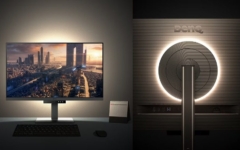


Eine Neigung nach hinten ist bis etwa 30 Grad möglich. Bei Drehung um die horizontale Achse liegt der Maximalwinkel bei 35 Grad nach links und rechts. Die tiefste Position verringert den Abstand von Rahmenunterkante bis zur Tischoberfläche auf 4 cm. In der höchsten Position beträgt dieser Abstand 13 cm.


Dieser Regelungsbereich sollte für fast jede Situation die optimale Höhenjustierung erlauben. Auf einem normalen Schreibtisch wird man den Eizo mit einer eher tiefen Einstellung nutzen, um nicht zum Bildschirm aufsehen zu müssen. Eine Pivotfunktion ist nicht vorhanden, allerdings bei dieser Bilddiagonale und Auflösung auch nicht wirklich nötig.
Die Seiten des Gehäuses weisen zahlreiche Belüftungsschlitze auf. Aufgrund der recht hohen Wärmeentwicklung des TFT-Monitors eine vernünftige Entscheidung. Durch die Öffnungen könnten vom Backlight angelockte Gewitterfliegen allerdings ungehindert in das Gehäuse und damit hinter das Panel gelangen.


Allerdings sind entsprechende Vorfälle auch schon von Nutzern der Apple Cinema Displays beobachtet worden. Diese weisen überhaupt keine Lüftungsschlitze auf, sodass die Vermutung nahe liegt, dass die Tierchen über die Panelseite in das Display gelangten.
Wer sich schützen möchte, sollte ein sehr feines Fliegengitter vor dem Fenster verwenden und eine zusätzliche Lichtquelle im Raum nutzen. Weitere Informationen zu diesem Thema bietet unsere Reportage Krabbelnder Albtraum – Insekt im TFT.


Eine Wandmontage des SX3031W ist problemlos möglich, an der Rückseite befindet sich eine VESA100-Verschraubung für entsprechend genormte Halterungen.
Beim Einschalten des Testgeräts macht sich der verbaute Lüfter sofort bemerkbar, welcher tief im Gehäuse versteckt ist und Panel und Elektronik mit Frischluft versorgt. Der Einsatz eines Lüfters bei TFT Monitoren ist eher selten und bei den 30-Zoll-Konkurrenten von Dell, Samsung und HP ist davon auch nichts zu finden bzw. zu hören.